


How do I reset a LETRS participant's password?
How do I reset a LETRS participant's password?
Overview
Lexia® LETRS® participants may be unable to log in or reset their password on their own. If a participant in your implementation is unable to reset their password, course managers with Owner or License Manager permissions can generate an email to reset participant passwords. This article explains this process.
Applies to: Course managers who have Owner or License Manager permissions for Lexia® LETRS®, Lexia® LETRS® for Early Childhood Educators, and/or Lexia® LETRS® for Administrators.
Does not apply to: Course managers who have Cohort Manager or View Only permissions or educators who are participants of Lexia® LETRS®, Lexia® LETRS® for Early Childhood Educators, and/or Lexia® LETRS® for Administrators.
Resetting a participant's password
If a participant is unable to log in or reset their password using the Forgot your username or password? button, it might be because their email address is incorrect. Before initiating the password reset process, first verify that their email address is correct.
See Edit LETRS Participant Information from Manage Licenses Page for directions on how to update a participant’s email address. Once their email address is correct, instruct the participant to use the Forgot your username or password? button again.
If the participant’s email address is correct but they still are unable to log in to the LETRS learning platform, then you can generate an email to reset their password.
To generate an email to reset a participant’s password:
Log in to letrs.com.
Select the Manage tab at the top of the page.
From the dropdown menu, select Licenses.
Select the name of a license set.
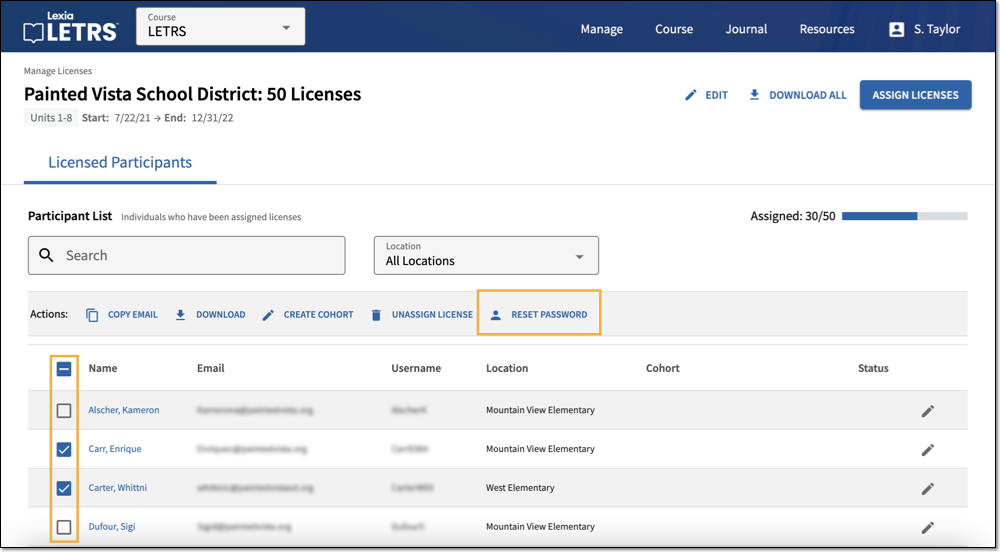
Check the box next to any participant who needs their password reset. You may select as many participants as needed.
In the actions bar, select Reset Password.
A pop-up will appear to confirm that you want to send the participant a password reset email. Click Send to confirm. The selected participant should receive an email with a link to reset their password.
Before you send a password reset email, you should notify the participant to expect the reset email.