

Closed Captioning in PowerUp
Closed Captioning in PowerUp
Overview
Do you have students with auditory disabilities or students who would benefit from reading text alongside audio? Lexia® PowerUp Literacy® includes closed captioning in all embedded videos to support them!
This article explains what Closed Captioning is and how students can enable it in PowerUp.
All Lexia student programs also include Audio Transcript Display (ATD) for audio content outside of videos. To learn more, see Audio Transcript Display in Core5, Lexia English, and PowerUp.
Applies to: Educators and administrators whose students use Lexia® PowerUp Literacy®
What is Closed Captioning (CC)?
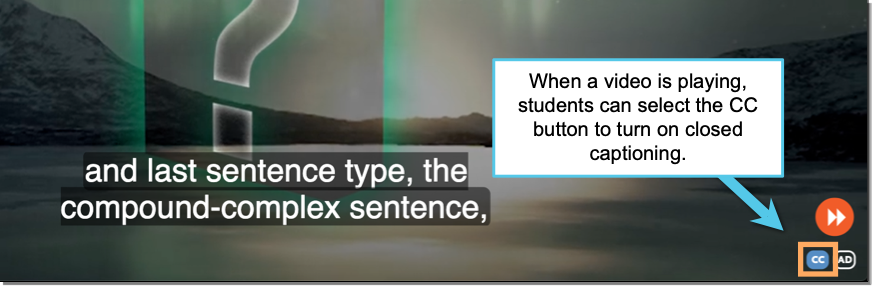
Closed Captioning is an accessibility feature that shows on-screen transcripts when audio plays in embedded PowerUp videos.
Closed Captioning must be turned on separately from Audio Transcript Display. Closed captions are student‑controlled, allowing students to turn them on or off during video playback.
How do students enable Closed Captioning?
Closed Captioning is managed by the student using the program. It is off by default. Closed Captions stay enabled on all videos until the student logs out.
When students encounter a video in PowerUp, they can enable Closed Captions by selecting the CC button.