



Audio Transcript Display in Core5, Lexia English, and PowerUp
Audio Transcript Display in Core5, Lexia English, and PowerUp
Overview
Did you know Lexia student programs have built-in captioning to support learners with auditory disabilities and those who benefit from reading text alongside audio?
This article explains what Audio Transcript Display (ATD) is and how to enable it in myLexia.
PowerUp also includes Closed Captioning (CC) for embedded videos. To learn more, see Closed Captioning in PowerUp.
Applies to: Educators whose students use Lexia® Core5® Reading, Lexia® English Language Development™, or Lexia® PowerUp Literacy®.
What is Audio Transcript Display?
Audio Transcript Display shows on‑screen transcripts whenever audio plays in Lexia's student programs. This includes instructions, prompts, and other prerecorded audio that is not part of a video.
ATD supports learners who:
Have hearing and/or cognitive disabilities.
Have limited access to headphones.
Are learning English.
Benefit from additional reading support.
ATD allows these learners to follow along with audio content.
What happens when Audio Transcript Display is turned on?
When ATD is turned on:
Transcripts appear automatically as on-screen text when audio plays.
The setting remains on until the educator turns it off in myLexia.
The setting applies to all Lexia programs the selected student is enrolled in. For example, if a learner is enrolled in Core5 and Lexia English, ADT will be enabled in both programs when turned on.
Lexia does not alter or delay transcripts to hide answers, as this compromises accuracy. Preserving transcript integrity supports equitable access, transparency, and compliance with accessibility standards, even when transcripts may disclose correct answers.

How do I enable Audio Transcript Display?
In myLexia, select Manage.
Select Students.
Use the search boxes under the Student Name or Username columns to search for the student.
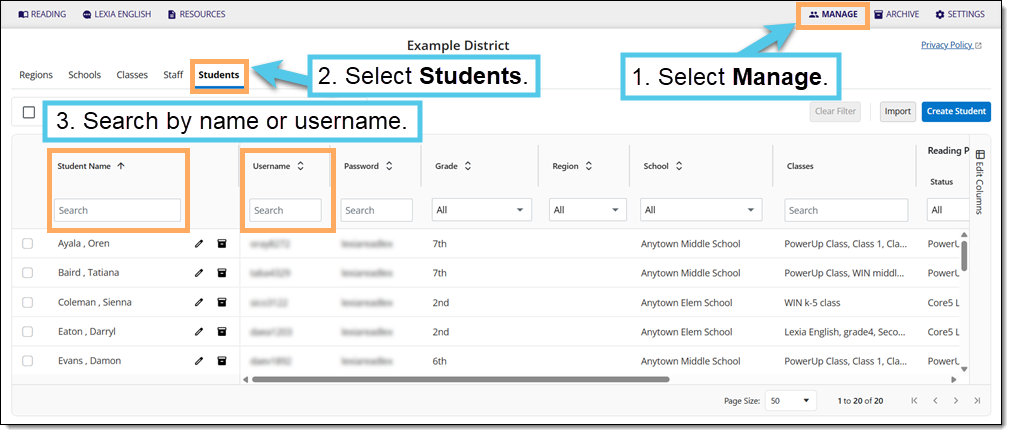
Select the Edit Student button (the pencil icon).
Under the Info tab, select the Audio Transcript Display toggle.
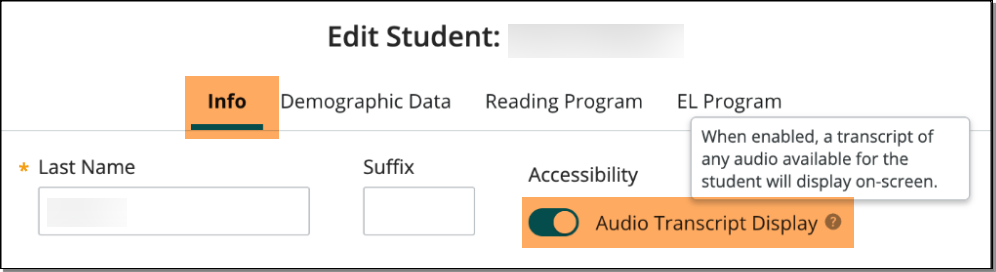
Select Save.