


Automated Import Error: Smart Quotes Not Supported
Overview
For customers who use an automated rostering system (such as Clever), smart quotes are a common unsupported character that can cause import errors. This article explains how to check if an unsupported quote is causing an error, and how to fix this issue.
Applies to: Administrators and/or school or district technical staff
Does not Apply to: Staff who have myLexia School Admin accounts in a district site, or staff who have Teacher accounts or Read-Only accounts.
What is a smart quote?
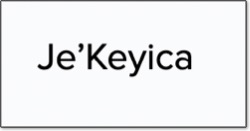
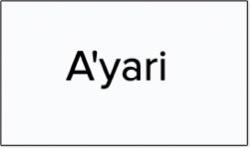
A smart quote, also known as a "curly quote," is curved (’) instead of straight ('). It may resemble an apostrophe when writing, but Lexia will receive it as an unsupported character. Smart quotes are often caused by autocorrect.
Smart Quote:
Straight Quote:
How can I confirm that an error is caused by a smart quote?
To confirm that a smart quote is causing an error, you can access the district SFTP folder and look at the import file. An unsupported apostrophe in a student or staff member's name will be replaced with "‚Äô." For example, the name "Je’Keyica" with a smart quote in it will show up in the import file as "Je‚ÄôKeyica."
You can also look at the user-summary log. The import error for an unsupported quote appears as follows:
For Clever: Student with refId: 64c90465d8912532a1eb0e not imported. Failure reason: First Name: 'Ja’Niyah' is invalid. 'Ja’Niyah' contains invalid characters
For ClassLink: Invalid 'first name' value. Valid characters are in the Latin 1 and Latin 1 Supplement Set in UTF8 format
Clever customers can see these articles for more information on how to check your user-summary log and how to fix import errors:
Access your logs: for Clever-managed sites
How can I proactively fix student Clever sync errors?
How can I fix the error?
Before you fix the apostrophe, check the keyboard setting on your device's operating system, and ensure it is set to U.S. Standard and not U.S. International. In your district information system, remove the smart quote from the student or staff member's name and replace it with a standard apostrophe. Once the error has been corrected, the student or staff member should sync successfully.