


myLexia Reports: PowerUp Class Overview
myLexia Reports: PowerUp Class Overview
Overview
This article explains where to find the Lexia® PowerUp Literacy® Class Overview report and what information is included in the report.
Applies to: Educators and administrators who have Teacher, School Admin, or District Admin access to myLexia®.
What is the PowerUp Class Overview report in myLexia?
The PowerUp Class Overview displays the overall status of your class in the PowerUp online student program. Use the data provided in the Class Overview report to monitor your students' progress, plan and prioritize instruction to meet each student's needs, and connect with resources to guide and support your instruction.
The Class Overview report will help you answer the following questions:
Who needs more time online?
Who needs more help?
Who is ready to practice offline?
Who can we celebrate?
What information is included in the PowerUp Class Overview report?
The PowerUp Class Overview report contains the following information:
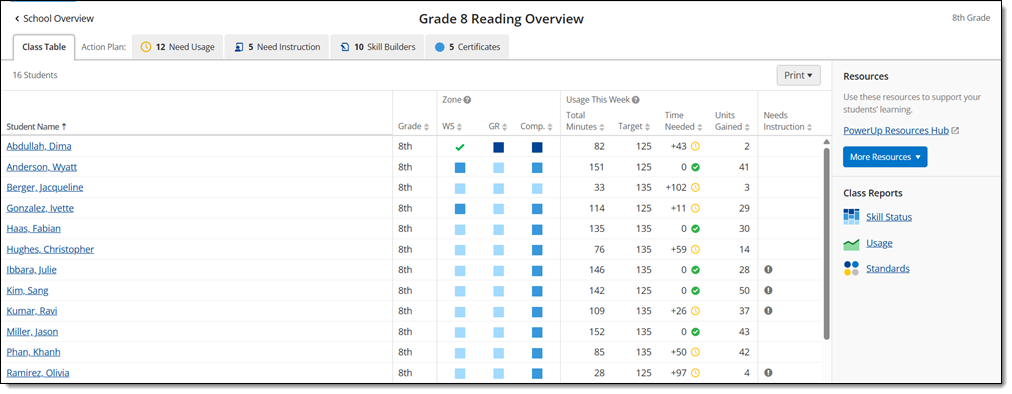
Zone and Level: Displays a student's current placement in each of the three PowerUp strands (Word Study, Grammar, and Comprehension). Each student's placement is color-coded based on which zone they are currently working in (Foundational, Intermediate, Advanced). If a student has completed a strand, their placement is converted to a green checkmark. Hovering over a student's strand placement will display more details on their progress, including what activity they are currently working in.
Usage This Week: Displays a student's usage and progress in the online student program on the current week. This section provides how many total minutes the student has spent in the program so far, what their weekly time target is, how much more time the student needs to spend in the program to meet their weekly goal, and how many units the student has gained in the program this week.
Needs Instruction: Indicates whether a student is flagged for an offline, teacher-led Lexia Lesson®. More detailed information on this can be found in the Needs Instruction tab.
Where do I find the PowerUp Class Overview report in myLexia?
To find the PowerUp Class Overview report:
In myLexia, select the Reading tab to view your Class Overview.

Do you have more than one class set up in myLexia? Use the My Other Classes dropdown to choose another class.
For administrators, selecting the Reading tab will take you to the District or School reports page by default. To see the Class Overview, select a school from the District Overview. Then, select a class from the School Overview.
How do I print or save the PowerUp Class Overview report?
To print and/or download the PowerUp Class Overview report:
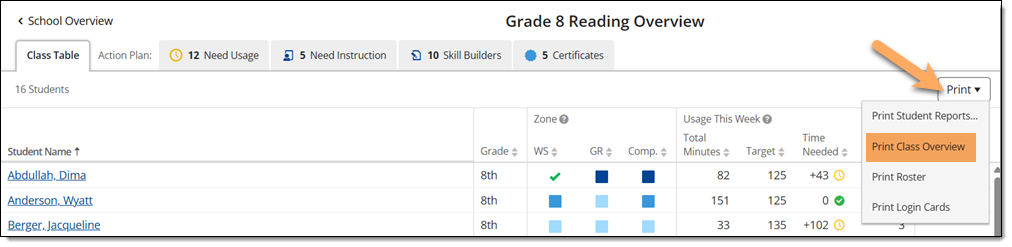
Select Print and then select Class Overview to generate a PDF of the Class Overview report.
Where can I learn more about the PowerUp Class Overview?
The PowerUp Class Overview Guide is a downloadable PDF that provides the following:
Overview and main purposes of the Class Overview report
Information on the data included in the report
Suggestions on how to use that data to support your classroom implementation