



How do I print reports for multiple PowerUp students?
How do I print reports for multiple PowerUp students?
Overview
Student Overview Reports and Skills Reports for Lexia® PowerUp Literacy® students are available on your Class Overview in myLexia.
This article explains how to print out these reports for multiple students, or for your entire class.
For information on how to print reports for an individual student, see: How do I print reports for individual PowerUp students?
Applies to: Educators and administrators who have Teacher or Admin access to myLexia®
How do I print reports for multiple students?
To print multiple reports from your Class Overview in myLexia:
In myLexia, select the Reading tab.
If you have Teacher access in myLexia, you will see your Class Overview.
If you have Administrator access in myLexia, select a school (if you are a District Admin) and/or a class to view the Class Overview.
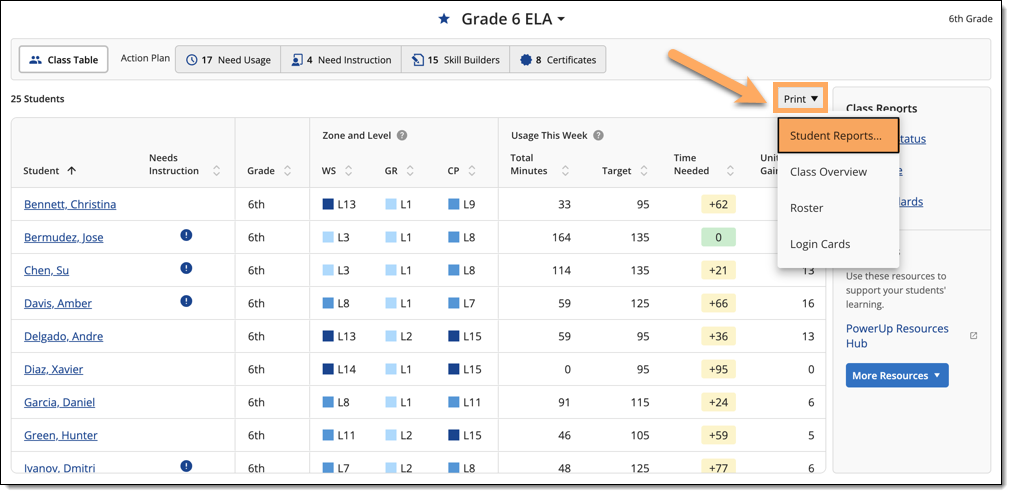
Select Print and then select Student Reports.
The Print Student Reports window will be displayed. All students in your class are automatically selected. You may de-select any students from the list, if needed.
Select the report you wish to print (e.g., Skills Report) from the student report dropdown menu.
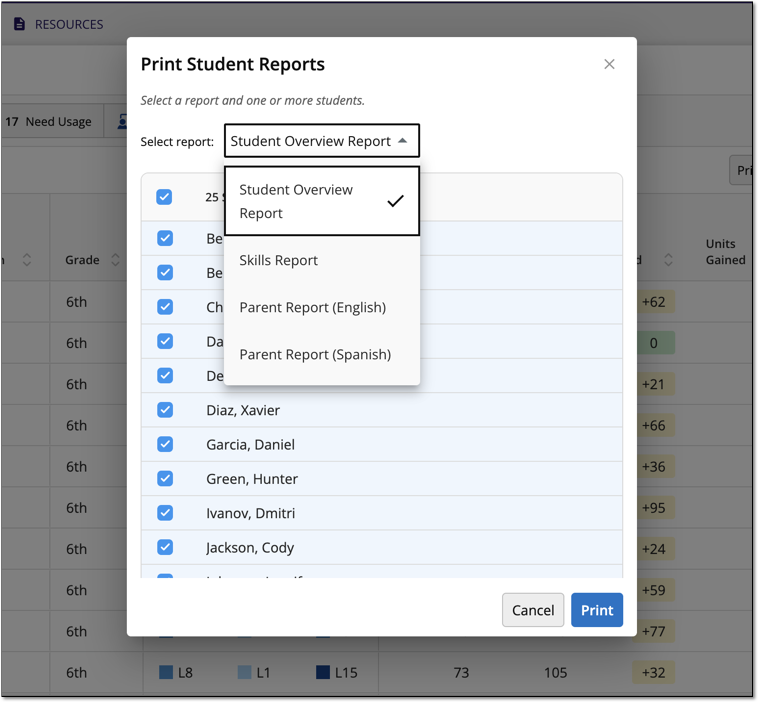
Select Print to generate the reports you selected. You may print or save them as PDFs.