



Not all student minutes recorded in Core5
Not all student minutes recorded in Core5
Overview
This article explains how usage minutes for Lexia® Core5® Reading are recorded and reported in myLexia. If you are concerned that a student’s usage minutes aren’t being recorded accurately, it may be because the student doesn’t always log out of Core5 when they are finished working. You can help your students get an accurate count of the minutes they spend working in Core5 if you make sure they always log out at the end of each Core5 session.
Applies to: Educators and administrators who have Teacher, School Admin, or District Admin access to myLexia®.
My student just logged out of Core5, but I don't see any minutes recorded for their most recent session in myLexia.
Sometimes students do not actually log out of Core5 when they are done working—they may walk away from the computer or device, close the browser window, close the laptop, or press the home button on the iPad. When this happens, the system still considers their session open, until it logs them off after 20 minutes of inactivity.
Core5 calculates and reports usage minutes in myLexia only after students log out or have been automatically logged after a set period of inactivity. If a student doesn't log themself out of Core5, their usage isn’t updated in myLexia until they are automatically logged out, so if you check myLexia for their usage before the automatic logout happens, you won't see that session's minutes yet. If you check again 20 minutes later, you should see that session’s usage.
Example |
|---|
Mika and Eli both started using Core5 at 10:30 and finished working at 11:00. Both students had just completed a unit.
When their teacher checked her Class Overview at 11:10, she saw that the 30 minutes from today were added to Mika’s Usage This Week, but none of today’s minutes had been added for Eli because Eli’s session was still open. When the teacher checked her class usage at 11:30, she saw 30 minutes of usage for both students. |
My student worked in Core5 for 30 minutes, but their usage report says they only worked for 25 minutes. Why didn't they get credit for all of their minutes?
If students don’t log out of Core5, it can affect how their minutes are calculated. Core5 does not record each answer as a student works in a unit. Instead, it waits to communicate with the server until a student either completes a unit, or branches from one step to another (e.g., from Standard to Guided Practice).
Logging out means all minutes are recorded
If a student logs out, the time at which they logged out is used to calculate their minutes. Not logging out can lead to some minutes not being recorded.
If a student doesn’t log out but is automatically logged out after being inactive, the system needs to determine a logout time in order to calculate their usage. It can’t know exactly when the student stopped working, so it looks for the last communication with the server.the last time the student finished a unit or branched to another step. Let’s say a student answered 5 questions in a unit but did not complete the unit before they stopped working. This would mean that the last communication with the server was some minutes before the student stopped using the program.
Student logs out of Core5 | Total minutes = Logout time - Login time. |
Student does not log out of Core5 | Total minutes = Last communication with server - Login time |
How can I help my students get credit for all of their minutes in Core5?
When students log out of the program instead of being logged out after being inactive, they receive credit for all of their minutes, even if it's been some time since the program last communicated with the server. For an accurate minute count, encourage students to always log out as follows:
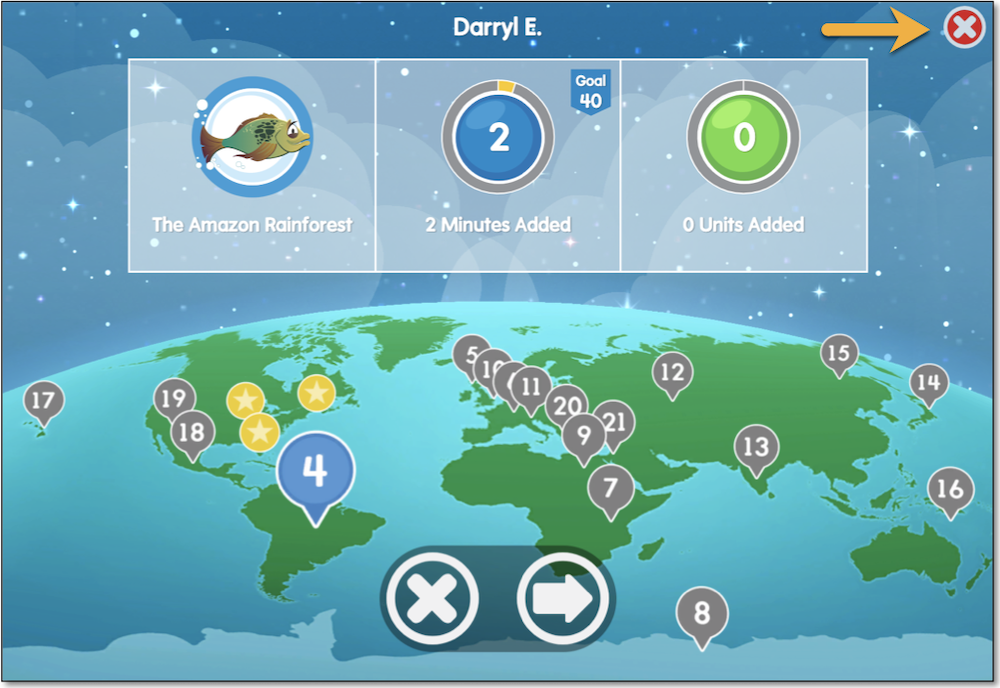
From the student dashboard, select the red X in the upper right-hand corner of the Core5 window.
In the logout window, select the white X to log out. Selecting the arrow will return the student to the activity selection screen.
Students should now see the logout screen with the dog. Select Log Out to log out of Core5.