



How do I view My Documents in Aspire?
How do I view My Documents in Aspire?
Overview
Lexia Aspire® Professional Learning Participants can download certificates, journal entries, and transcripts from the My Documents page.
This article explains how to access the My Documents page.
Applies to: Educators who are enrolled as Participants in Lexia Aspire® Professional Learning.
Does not apply to:Lexia Aspire® Professional Learning Leaders.
Where can I find the My Documents page in Aspire?
The My Documents page is found within the Aspire learning platform.
-
Log in to lexiaaspire.com.
-
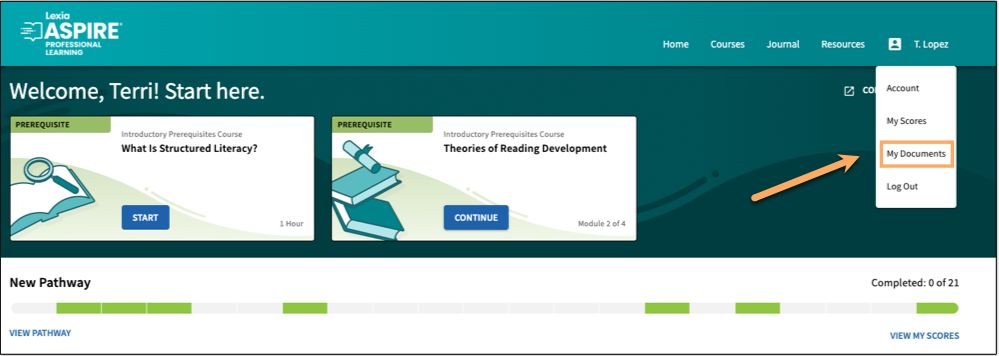
Select your name.
-
Select My Documents.
-
Select the download button next to the document you wish to download. Alternatively, download all available documents by selecting Download All.
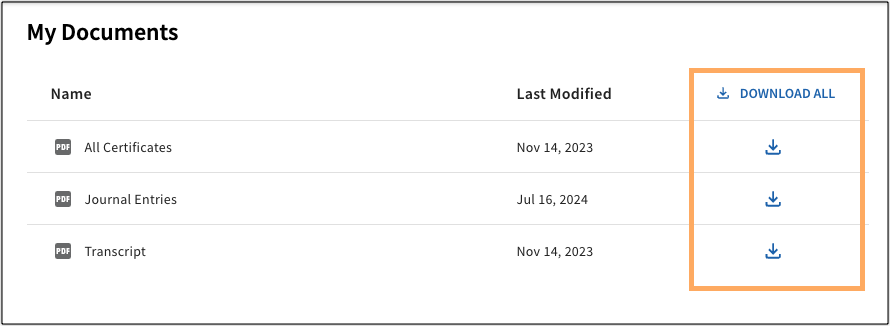
Documents downloaded individually will save as single PDFs. Downloading all documents at once will save as a single zipped file containing a PDF of each document.