

LETRS Course Manager Licenses Page
LETRS Course Manager Licenses Page
Overview
This article describes the course manager dashboard functions in Lexia® LETRS®.
Applies to: Course managers with Owner, License Manager, Cohort Manager, or View Only permission for Lexia® LETRS®.
Does not apply to: Educators who are enrolled in the Lexia® LETRS®, Lexia® LETRS® for Early Childhood Educators, and/or Lexia® LETRS® for Administrators courses of study.
Licenses Dashboard
Any LETRS course manager can view participant license information in their implementation. From the Manage menu, select Licenses. You will be directed to the Manage Licenses page.
Only course managers with Owner or License Manager permission can edit, assign, or unassign participant licenses.
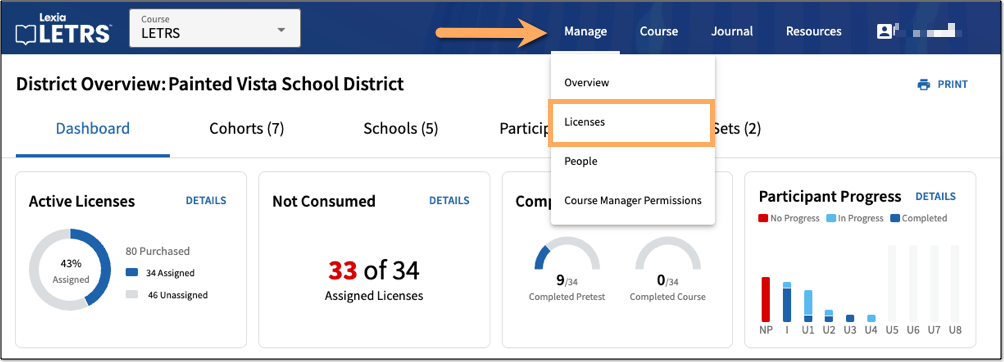 |
The LETRS Licenses dashboard displays multiple charts.
Utilization Chart
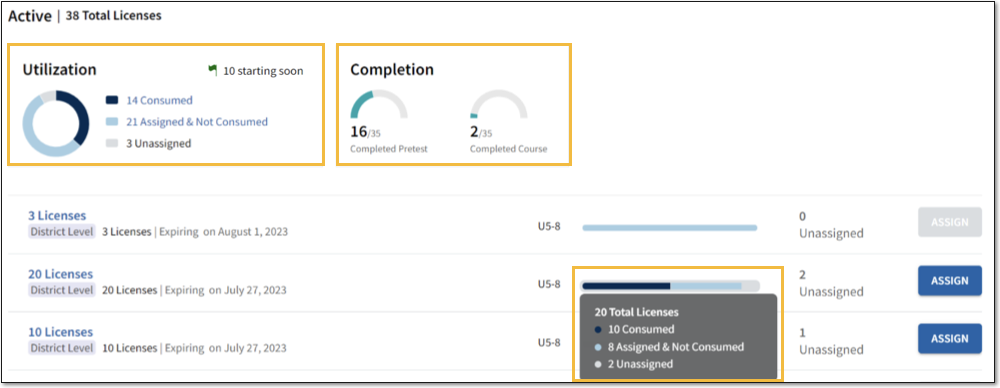
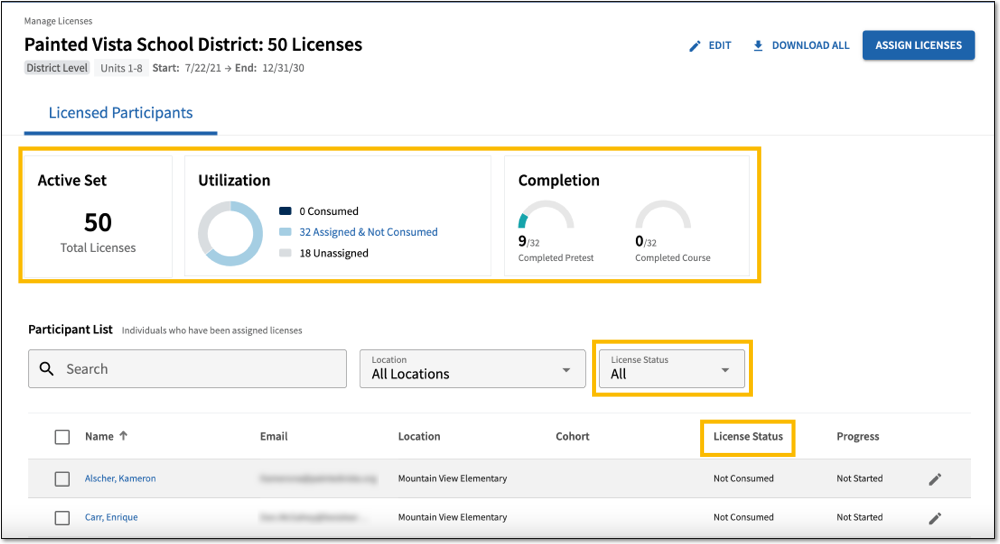
The Manage Licenses page includes a Utilization chart for each category of license sets:
Upcoming
Active
Expired
Each chart shows the total number of licenses across all license sets and is divided into three statuses:
Consumed
Selecting the Consumed label navigates to a table in the Participants tab that shows the number of participants who have a consumed license from an active license set.
Assigned & Not Consumed
Selecting the Assigned & Not Consumed label navigates to a table in the Participants tab that shows the number of participants who have been assigned a license that they have not yet consumed.
Unassigned
Selecting this label will show the number of unassigned licenses.
Completion Chart
The Active and Expired license sets have a Completion chart, which shows how many participants have completed the pretest and course.
Bar Chart
Each license set has its own horizontal bar chart, which breaks down the individual set's utilization by upcoming, active, and expired licenses.
 |
License Status Charts Per License Set
Selecting a license set displays the status charts for that one set of licenses. The Participant List on this page includes the License Status column and filter.
Allocation Charts
State-level course managers can track the allocation status of state-owned licenses in each category (Upcoming, Active, and Expired) on the Allocation chart. This chart is also shown on the Allocation table of the single license set page.