



How do students create and edit their Lexia English avatar?
How do students create and edit their Lexia English avatar?
Overview
In Lexia English Language Development™, students can create and personalize their own avatars! The Lexia English avatar helps students find a personal connection to the program and supports conversations between the student and the Lexia English characters.
This article explains how students can create and edit their avatar in Lexia English.
Applies to: Students who use Lexia English Language Development™
How do students create their Lexia English avatar?
Students are prompted to create their avatar when they log in to Lexia English for the first time.
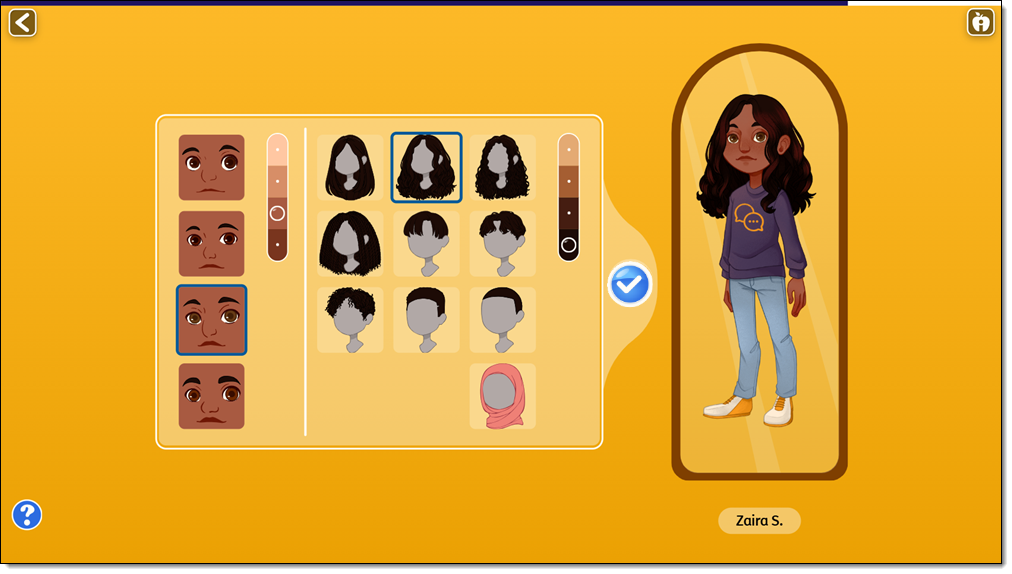
Students view a brief instructional video on how to create their avatar so they can engage with the characters in Lexia English. After watching the video, they see the avatar creation screen where they can personalize their avatar.
The student has a time limit of two minutes to create their avatar. When the timer runs out, a pop-up window appears asking if the student is done making changes. If they need more time, select No to reset the timer.
How do students edit their Lexia English avatar?
To edit the Lexia English avatar:
-
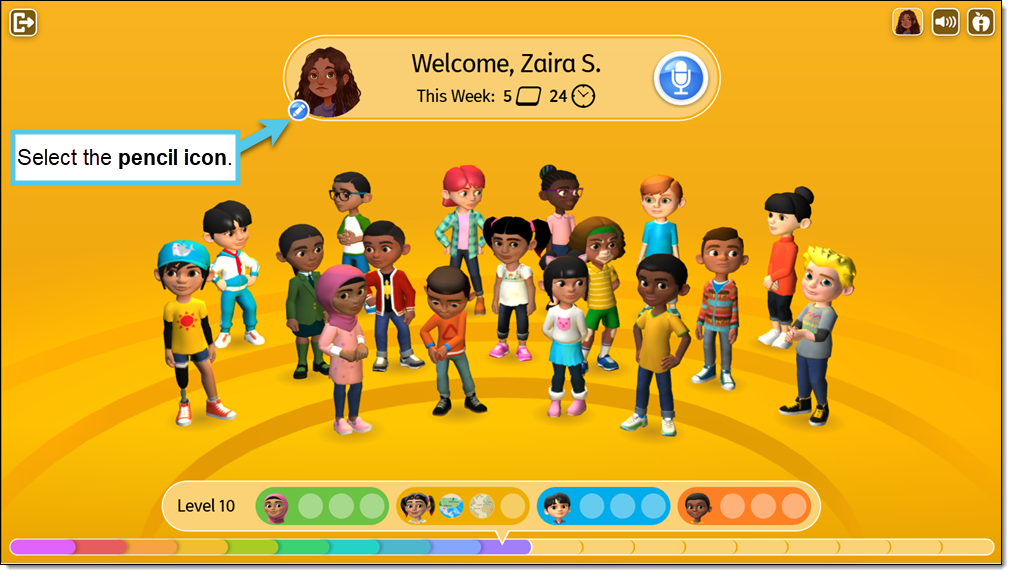
On the Lexia English student dashboard, select the pencil icon.
-
On the avatar creation screen, select from the customization options to make updates. The student has a time limit of one minute to edit their avatar.
-
Select the checkmark to save and return to the student dashboard.
If they want to edit their avatar again, they need to complete another encounter to re-access the edit option.
Why is the edit avatar option unavailable?
To encourage students to stay on task in Lexia English, they can only edit their avatar once per encounter.
Students can check if the edit option is available on the student dashboard.
-
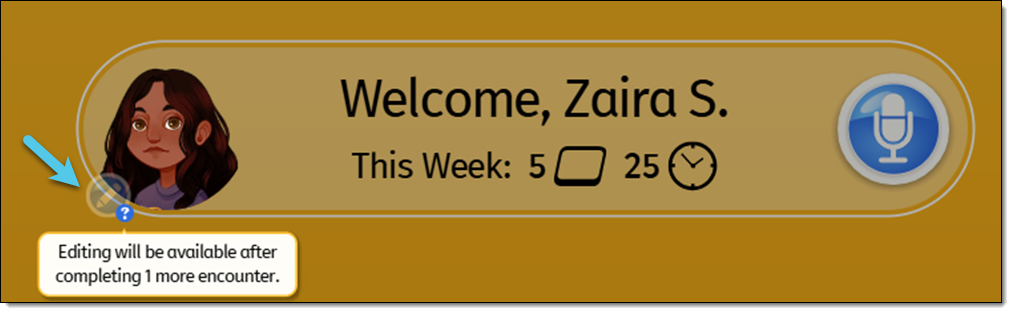
When the student cannot edit their avatar, the pencil icon is grayed out and a question mark icon appears next to it.
-
Selecting the question mark icon will display the following message: "Editing will be available after completing 1 more encounter."
Once a student edits their avatar, they must complete the current encounter before they can edit their avatar again.