




Set Default Reporting View to Core5
Overview
The default reporting view affects which Lexia® program reports display when you log in to myLexia—Lexia® Core5® Reading, Lexia® English Language Development™, or Lexia® PowerUp Literacy®. Staff can set their own default reporting views, or a myLexia administrator can set a default view for them.
This article explains how to set the default reporting view to Core5.
Applies to: Educators who have myLexia accounts, and whose students use Lexia® Core5® Reading
How do I set my default reporting view to Core5?
By default, the reporting view in myLexia will be for Core5. If your reporting view has changed to another program and you would like to change it back to Core5, you can do so by following the below steps.
Staff with School Admin, District Admin, and Teacher access can change their own default reporting view on the My Profile menu:
Log in to myLexia, select your name at the upper right and choose My Profile from the dropdown menu to open the Edit Profile window.
Select Program Settings at the top of the window.
Select Lexia Core5 Reading and select Save.
The next time you log in, the default reporting view will be for Core5.
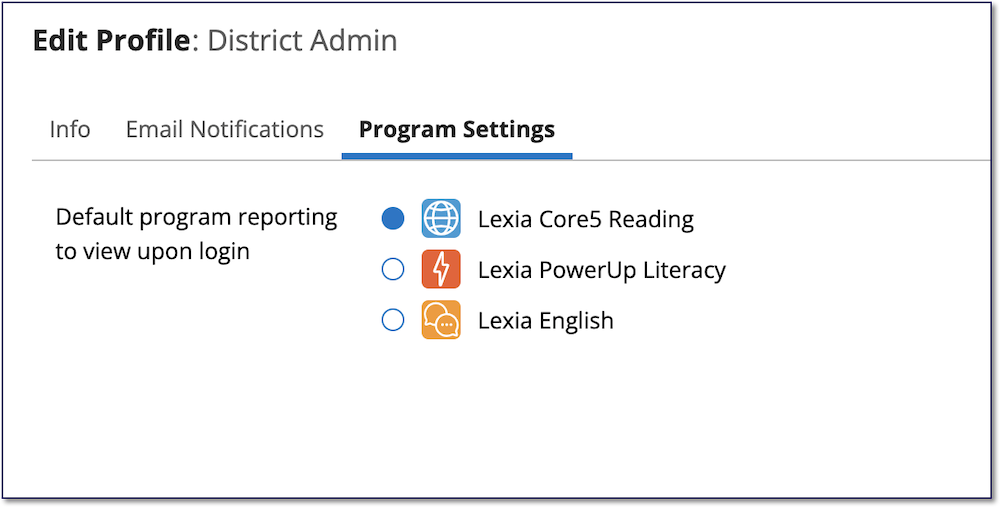
If you are a myLexia admin, and your school or district has access to Lexia English licenses, a one-time "Set Your Default Program View" message will appear when you go to the Lexia English page on your first login. If you would like to set your default reporting view to Core5, select Lexia Core5 Reading and select Update.
How do I set another staff member’s default reporting view to Core5?
Staff with School Admin access in myLexia can change the default reporting view for any staff at their assigned school. District Admins can change the default view for any staff in their district.
To set another staff member’s default reporting view to Core5:
In myLexia, select Manage, then Staff.
Find the staff member whose default view you want to change. You can use the Search or Filter functions to narrow down the list of staff.
To the far right of the staff member’s name, select the pencil icon to open the Edit Staff window.
Select Program Settings at the top of the window.
Select Lexia Core5 Reading and select Save.
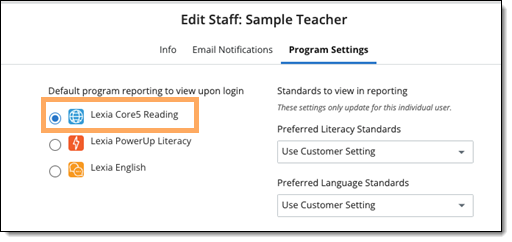
When a staff member’s default reporting view is Core5, they will see the Core5 reports page when they log in. (For Lexia English customers: If you set their default view prior to their first login, they will not see the “Set Your Default Program View” pop-up message when they log in.)
Can I change the default reporting view for more than one staff member at once?
You can only change staff members’ default reporting views one at a time. However, staff can always change their own default view via the My Profile menu, as illustrated in the “How do I set my default reporting view to Core5?” section above.