


How to view Core5 certificates and mark them as delivered
How to view Core5 certificates and mark them as delivered
Overview
Lexia® Core5® Reading students receive level certificates when they complete a level in Core5.
Students also receive a completion certificate when they complete all of Core5.
This article explains how to view which students have available certificates, and how to mark Core5 certificates as delivered in myLexia.
Applies to: Educators and administrators who have Teacher or Admin access to myLexia®
How do I know which students have a certificate that is ready for me to deliver?
Class Overview
Recent certificates for all students are on your Class Overview. Select the Certificates tab on your class Action Plan to see all certificates earned in the past three weeks that have not been marked as delivered.

Student Overview
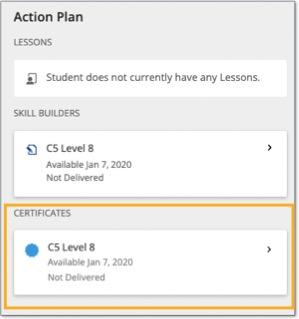
Recent certificates for individual students are on the Student Overview. Certificates are in the Action Plan section of each Student Overview page.
How do I print certificates and mark them as delivered?
Teachers
Please note that when you mark certificates as delivered, they will disappear from the Certificates tab on your class overview. However, you can still view previous certificates or mark them as undelivered via the All Certificates page. See the section I marked a certificate as delivered by mistake! for more information.
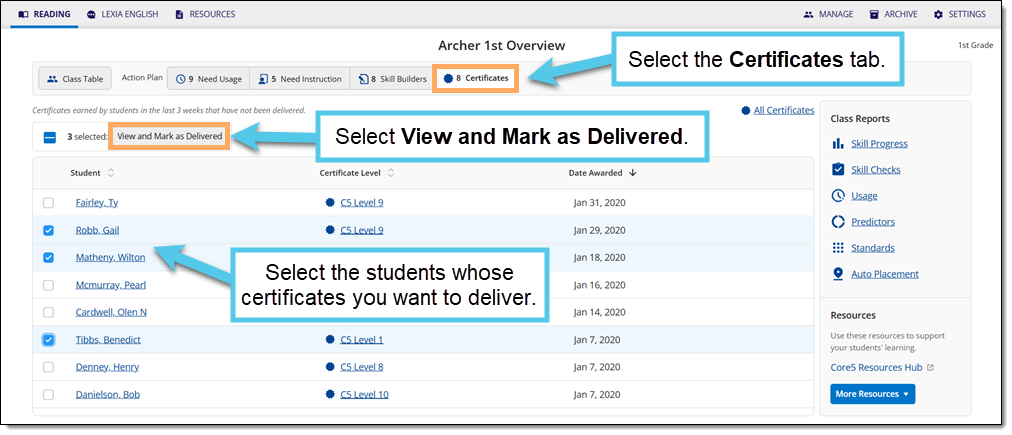
On your Class Overview, select the Certificates tab of the Action Plan.
Select the certificate(s) you want to print or mark as delivered.
Select View and Mark as Delivered.
The certificates will display in a pop-up window. Select the print button to print them.
If you do not see the certificate(s) you wanted to mark as delivered in the list, select All Certificates. You should see all certificates earned by your students this school year. You can select any certificates from this list and select View and Mark as Delivered.
Administrators
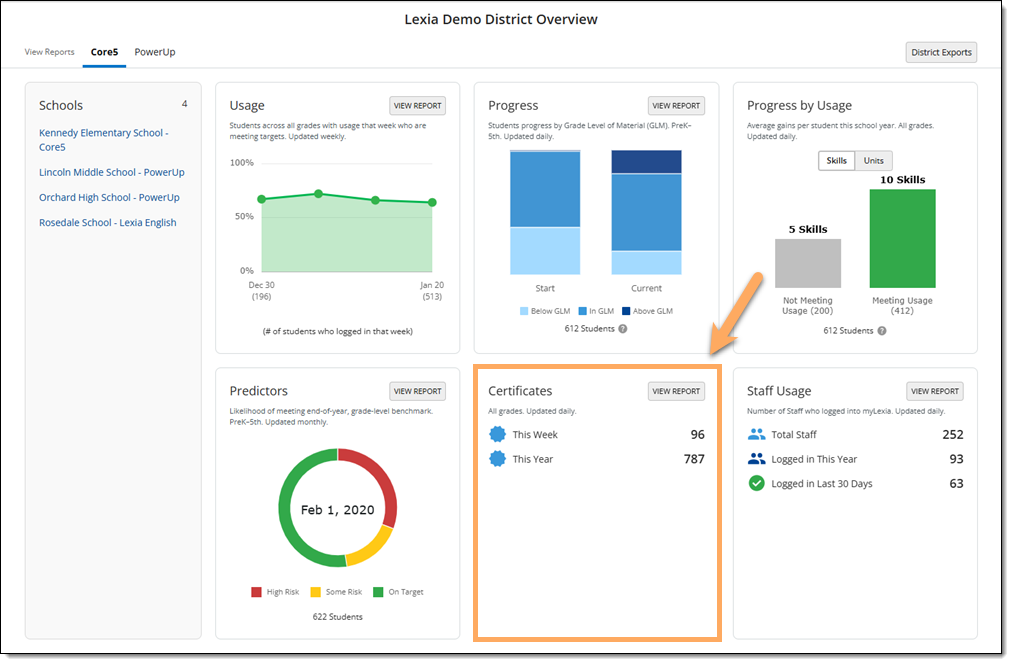
On your District Overview or School Overview, select View Report on the Certificates card.
If you are a District Administrator, select the name of a school. If you are a School Administrator, you will see the available certificates for your assigned school.
Select the certificates you want to print or mark as delivered. You can select the box next to Student Name at the top of the list to select all certificates.
Select View and Mark as Delivered.
The certificates will display in a pop-up window. Select the print button to print them.
I marked a certificate as delivered by mistake! Can I mark it as undelivered?
Yes, you can mark a certificate as Not Delivered and it will appear under the Certificates tab and on the student's overview again.
For instructions, see How to mark Core5 certificates as not delivered
For more information about Core5 certificates, see Core5 Certificates FAQ