

Filter Usage Report by Tagged Lexia English Classes and Students
Overview
In myLexia, you can tag classes where students are using Lexia English Language Development™. When a class is tagged as a Lexia English class, myLexia administrators can filter the school or district Lexia English Online Usage report by tagged classes, or by students in tagged classes. (For information on how to tag a class, see Tag Lexia English Classes in myLexia.)
Applies to: Educators and administrators who have School Admin or District Admin access to myLexia®.
Does not apply to: Educators who have Teacher access in myLexia
How do I filter a Lexia English Usage Report by tagged classes?
The Online Usage report will look slightly different depending on whether you have District Admin or School Admin access.
District admins can see all of the tagged classes in a district, and can view the report broken down by school for further details.
School admins can filter the report by any tagged classes in their assigned school.
From a District Online Usage report
Log in to myLexia and go to the Lexia English page.
From a District Overview, select “View Report” under the Usage section. The District Usage report displays.
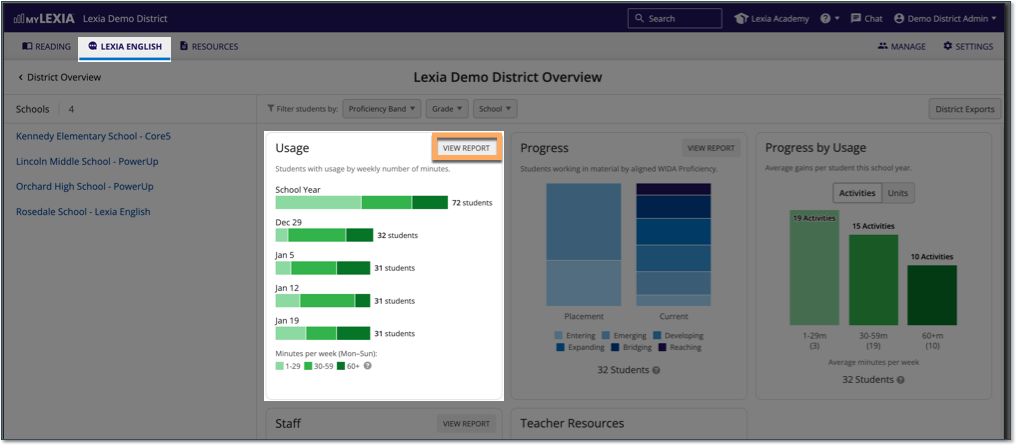
Next to Filter Schools by Class Tag at the top of the District Usage report, select Lexia English from the dropdown menu.
You will see a usage report that displays only the schools that have classes tagged as Lexia English classes.
This filtered report will only include tagged classes, and the students within those tagged classes. Students who use Lexia English but who are not in a tagged class will not be included in the report.
Select the name of a school to bring up the Online Usage report for that school. Use the steps below to filter the school online usage report by tagged classes.
From a School Online Usage report
Log in to myLexia and select the Lexia English tab.
From a School Overview, select “View Report” under the Usage section. The School Usage report displays.
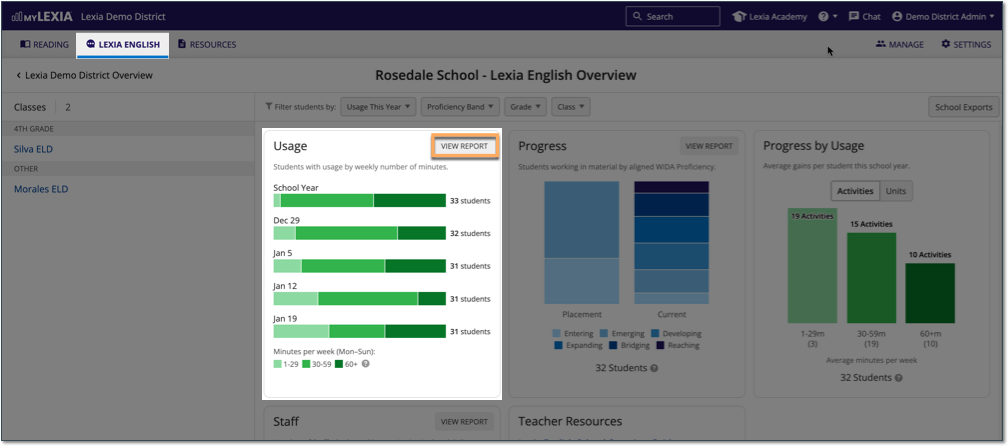
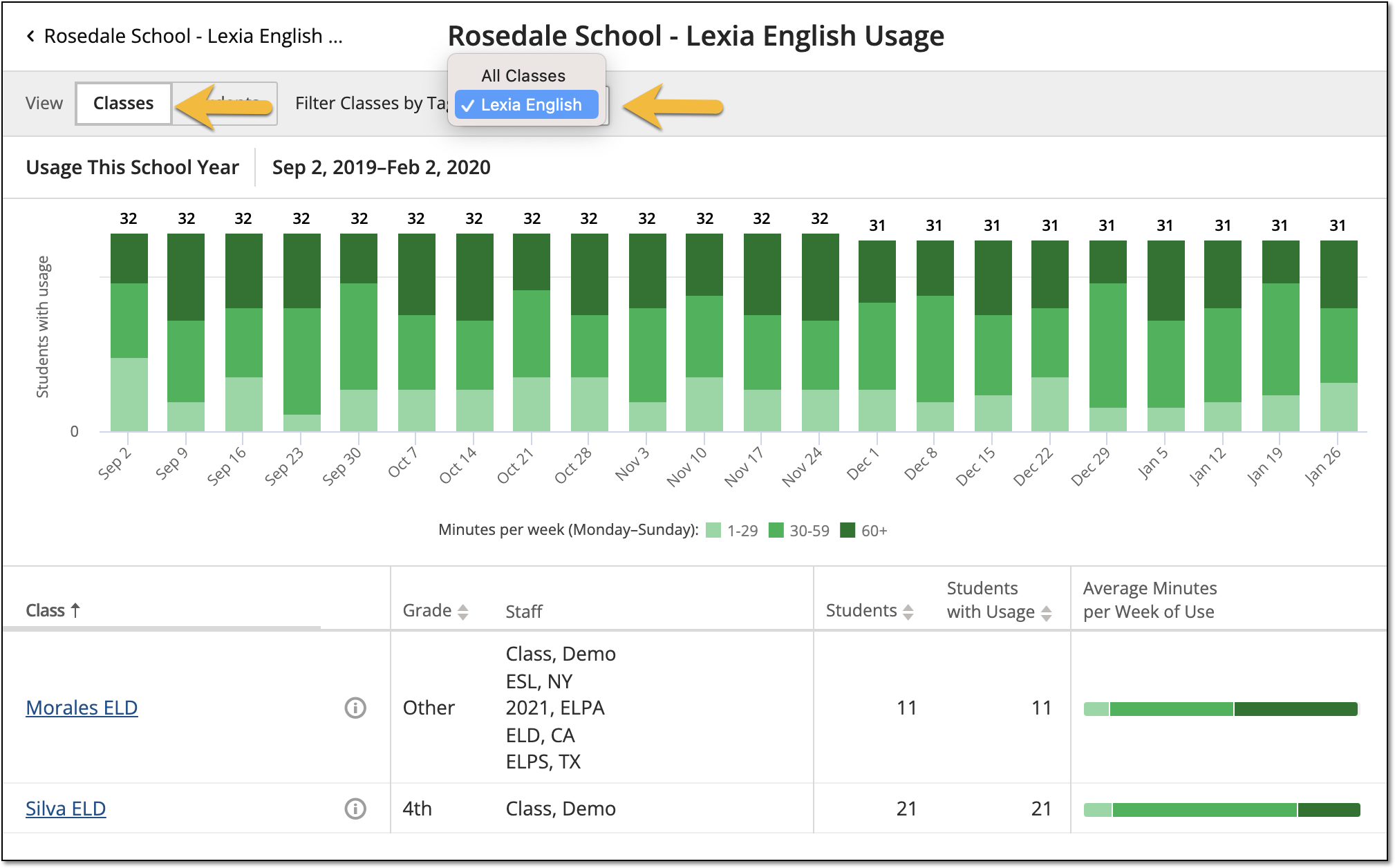
Next to View at the top of the School Usage report, select Classes.
Next to Filter Classes by Tag, select Lexia English from the dropdown menu.
How do I filter the Lexia English Usage report by students in tagged classes?
From a School view of the Usage report, you can filter by students in tagged classes:
If you are a District Admin, you will first need to select the name of a school under the Schools list at the bottom of the Online Usage report. If you are a School Admin, you will already be looking at the Usage report for your assigned school.
Next to View at the top of the report, select Students.
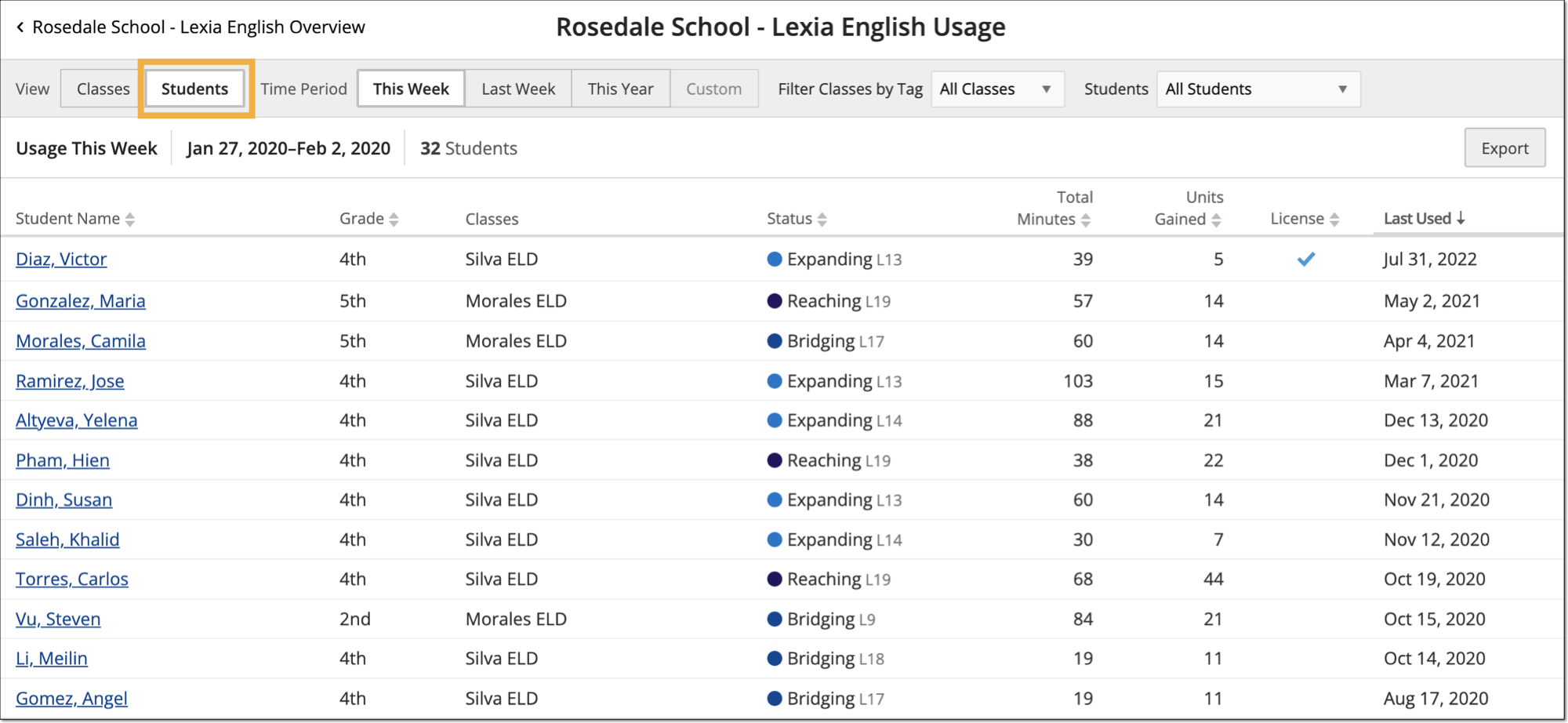
You will see a list of all students in the school. The Status column will display a Lexia English level, or will say “Not Started” for students that have not used Lexia English.
To filter by students who are in tagged Lexia English classes, select the dropdown menu next to Filter Classes by Tag and select Lexia English. This view will show only students in tagged Lexia English classes.
